Purchasing and suppliers
The main sequence is purchase order → receipt → supplier bill → payment. Each step records something different.
| Step | Result |
|---|---|
| Purchase order | Records what you intend to buy |
| Posted receipt | Adds the goods actually received to stock |
| Posted supplier bill | Records what you owe the supplier |
| Recorded payment | Settles allocated bill amounts and deducts funding sources |
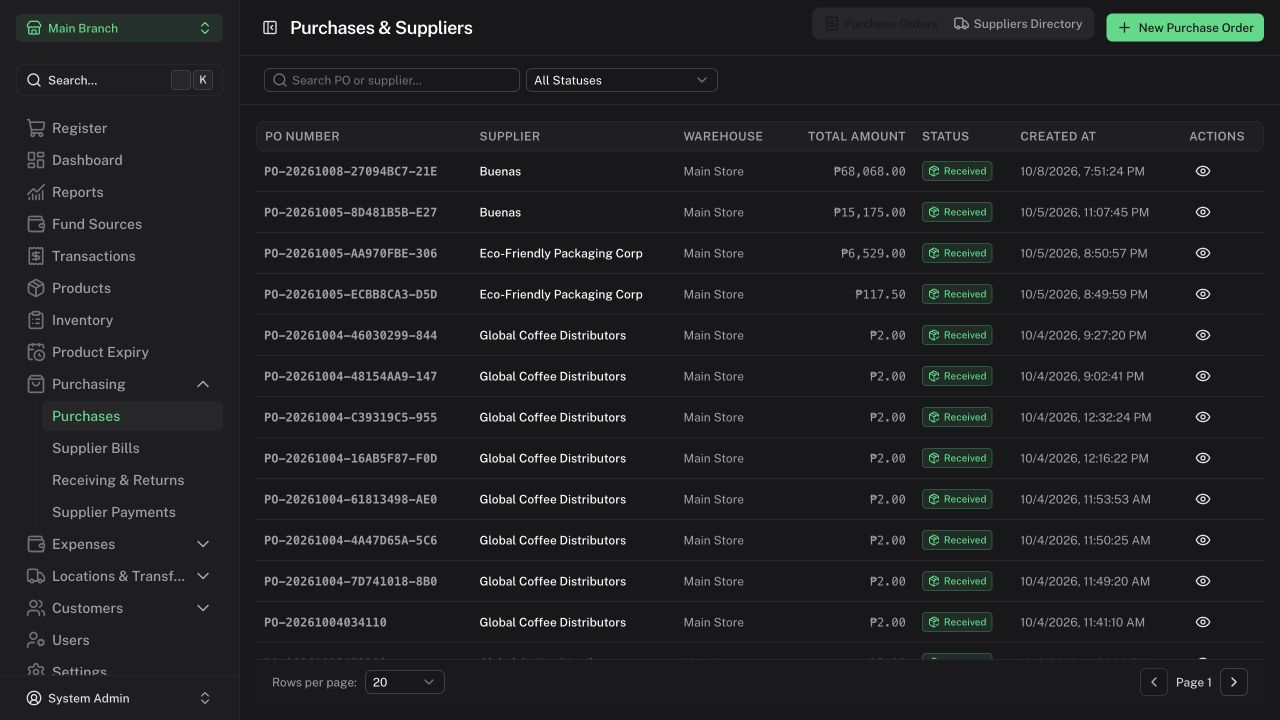
Prepare a purchase order
- Open Purchasing → Purchases.
- Add a supplier if needed and permitted.
- Select New Purchase Order.
- Select the supplier and destination warehouse; add products, units, quantities, and costs.
- Save and review the draft, then use the permitted posting action.
- Print/download the A4 purchase order if needed.
Receive a delivery
Purchase quantities and unit costs refer to the selected UOM. For example, 10 boxes of 12 means 10 boxes on the PO and 120 pieces added to piece-based stock when received. See Units and Base UOM before entering pack quantities or costs.
- Physically check the delivered goods.
- Open Purchasing → Receiving & Returns → Receive delivery.
- Select the relevant PO and destination.
- Enter the quantities actually delivered and review the receipt.
- Post the receipt and check the added stock.
One PO can have several deliveries. Close an undelivered balance with a reason when no more goods will arrive. A receipt reversal can be blocked if its stock has already been sold, consumed, or transferred.
Prepare a supplier bill
Use Prepare supplier bill on a posted receipt, or open Supplier Bills and select eligible posted receipt lines. Enter the supplier invoice details and review quantities and prices.
One invoice may consolidate receipts for the same supplier and branch; partial billing is supported. Drafts do not reserve billable quantities. Posting rechecks availability, and invoice price differences require Admin acknowledgement. Receipt cost remains the inventory valuation basis.
Managers prepare bills; Admins approve them.
Record a supplier payment
Open Supplier Payments, select the supplier, and allocate the payment to outstanding bills. Check the funding rows and bill allocations: both must independently equal the payment total.
Managers can use ordinary noncash sources in their current branch. Admins retain cash funding and cross-branch payment access. Overpayments and advances are rejected. Recording a payment does not send money to the supplier.
Returns, credits, and corrections
Physical supplier returns and supplier credit notes are separate records. A credit reduces the supplier obligation; it is not a cash payment. Unused credit can be allocated to later bills.
Posted documents cannot be edited. Reverse dependent payments and allocations before reversing their parent documents. Normal corrections are limited to the Philippine day of posting; older eligible document corrections require Admin override and a reason. Existing stock and dependent-record checks still apply.