Branches, warehouses, and stock transfers
Branches and warehouses
Admins manage branches under Locations & Transfers → Branches. Complete the branch code, name, TIN, and address; phone and email are optional. Assign staff access under Users → Branch access.
Warehouses identify stock locations within a branch. Check both branch and warehouse before selling, receiving, adjusting, or transferring stock.
Admins can inspect archived branches, but operational posting requires reactivation. Warehouse history cannot be deleted or reassigned.
Transfer stock
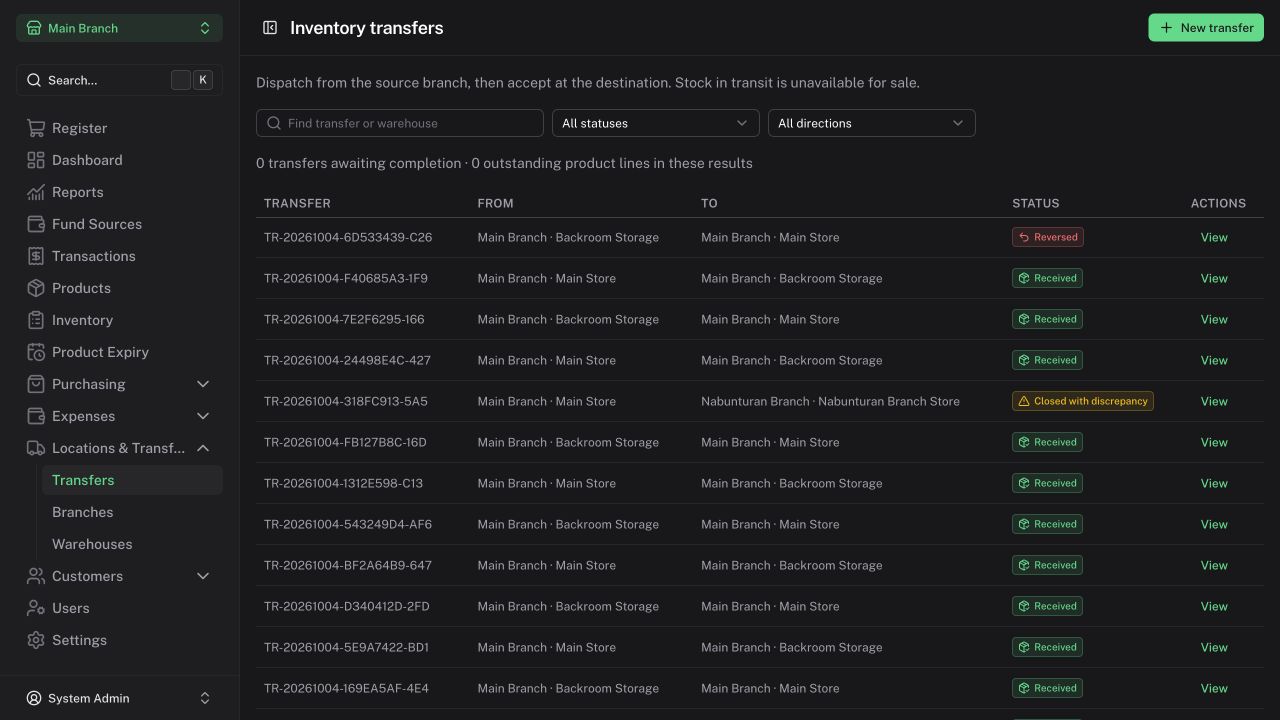
- Open Locations & Transfers → Transfers → New transfer.
- Select the source and destination locations and add product quantities.
- Save and review the draft. Drafts do not reserve stock.
- Dispatch from the source branch when goods physically leave. Stock is deducted and becomes in transit.
- At the destination, inspect the goods and accept the quantities actually received.
- Check received stock and review any unresolved balance.
Partial acceptance is supported. Only accepted quantities become stock at the destination. In-transit goods are unavailable for sale.
Resolve a discrepancy
An Admin resolves outstanding goods as a write-off or a confirmed physical return after checking what happened. Do not accept quantities that were not physically received.
Dispatched transfers cannot be normally cancelled. An Admin reversal is possible only when all accepted stock remains untouched and no discrepancy has been resolved. Otherwise, arrange a new physical transfer in the opposite direction.
Stock transfers and fund transfers are separate workflows.