Getting started
Sign in
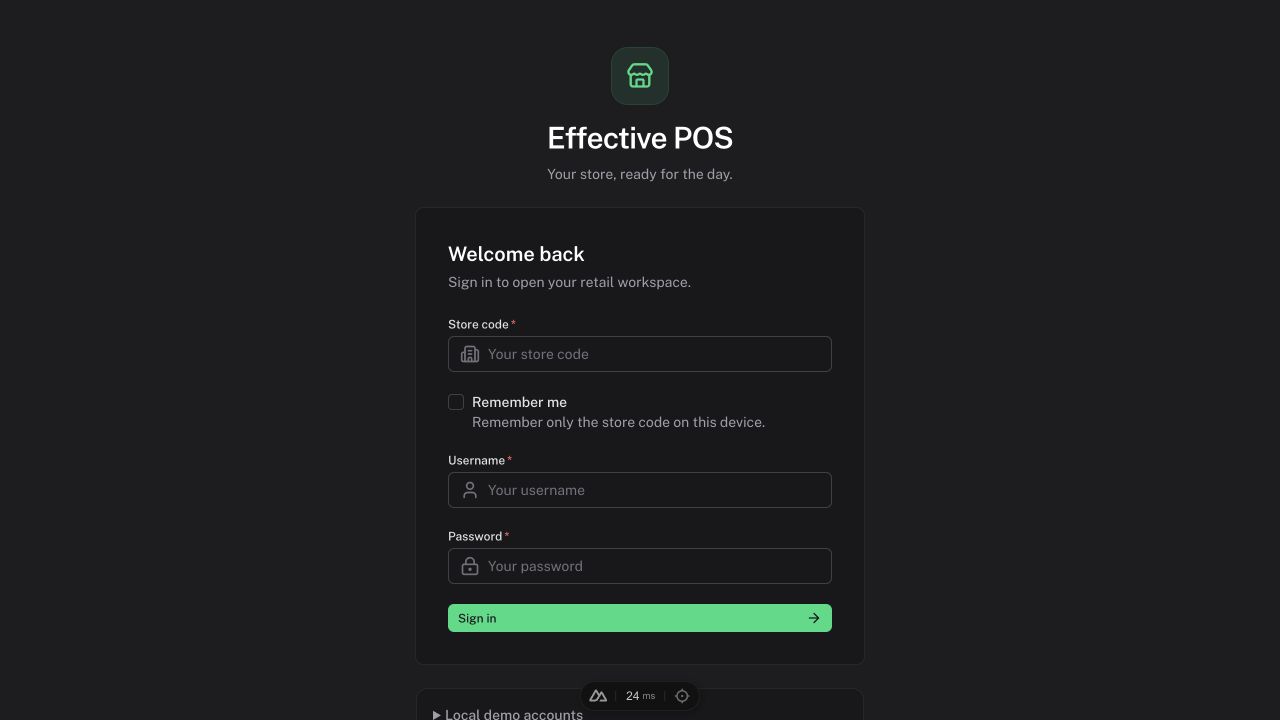
Have your store code, username, and password ready. Your Admin supplies these details.
- Open your business's POS address.
- Enter Store code, Username, and Password.
- If appropriate for the device, select Remember me. This remembers only the store code; it does not save your username or password.
- Select Sign in.
- If asked, choose the branch where you are working.
Choose the right location
Sales, stock, and customer credit use the selected branch. Check the branch selector at the top of the sidebar before beginning work. The Register also has a warehouse selector.
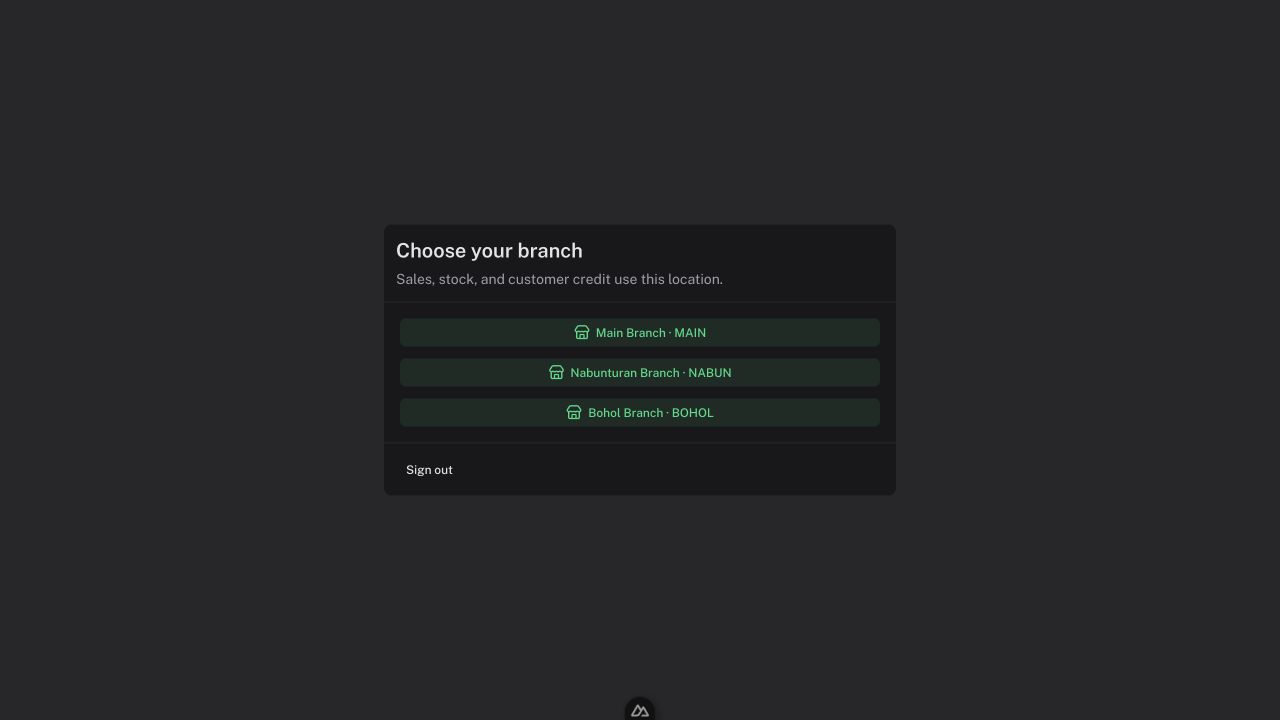
Changing branches may ask you to discard a cart or unsaved form. Branch switching is blocked during a cashier shift. Finish the shift and handover before moving to another branch.
Find a screen
Use the sidebar or Search…. Expand a group to see its pages:
| Group | Pages |
|---|---|
| Purchasing | Purchases, Supplier Bills, Receiving & Returns, Supplier Payments |
| Expenses | Operating Expenses, Staff Payouts, Expense Reports |
| Locations & Transfers | Transfers, Branches, Warehouses |
| Customers | Customer Directory, Credit Payments, Receivables Reports |
Groups and actions that your role cannot use may be hidden.
Admin setup before trading
- Complete store and branch details, including branch TIN and address.
- Create warehouses and assign staff branch access.
- Add products, selling units, prices, and verified opening stock and costs.
- Create Fund Sources with verified opening balances and enable the sources used for customer payments.
- Confirm the business-wide register tax policy.
- Test the scanner and one actual receipt print on the equipment you will use.
- Train cashiers to open and close their shifts.
Before adding the catalog, read Units of Measurement and Base UOM. Choosing the base unit determines how you enter opening stock and how pack sales consume it.
See Settings, Inventory, and Fund sources for the details.